Up next in 10


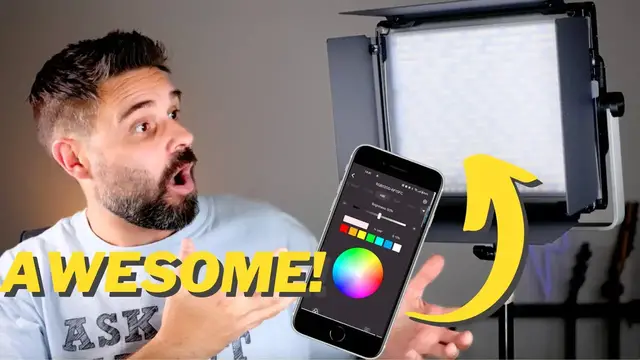
In this video I'll review the NEEWER RGB1200 60W RGB LED Video Light, and I'll also show you exactly how the app works and a full setup.
Check the NEEWER RGB1200 60W RGB LED Video Light out here: https://amzn.to/3QRpujE
(If you buy something through this link, I might earn a commission at no extra cost to you. It's how I support the channel)
Show More Show Less View Video Transcript
0:00
I'm here with the Neura RGB 1200, and let me quickly set that up so I can have this
0:04
video look a lot better. Well, that's better, and I can set the mood a little bit, and change the color sensor
0:10
here right from the app. But let's first look at how to set this up manually. There are two ways of connecting this
0:16
First one is using the dual bracket, like so, on the front, so they can show forward
0:22
So in the front, they show forward, but I'm mounting it upward
0:27
I'll give it a little more stability here. Let's tighten that, and let me open up the flat screen
0:32
And there's also a computer inserted here, so this will just use the light
0:36
And then, if I hook it up, there's this long extension cord
0:41
So you can set a lot of things manually here on the back. The first thing is the CCT version with the mode selector
0:48
So here you set it on CCT, and then you can use this dial to change the temperature, so
0:55
I can go from like setting sun, yellowish here, to a full bright daylight
1:01
The daylight is the one I'll be mostly using for my videos, because I'm just sitting behind
1:05
my desk here. I want a cool, nice daylight on my face and on the subject I'm recording
1:11
And you can also change the intensity to full on, and then change it to more like an off
1:17
version here. And the other cool thing here is when you change the mode, it has the A.I. function
1:23
and it will give like a view here, like a different color. And then you can go from like a purple here, to a more reddish color, some orange, yellow
1:34
and just go through the full spectrum here. And if you want to change the saturation in the same way, just press the button here
1:40
and you can increase or decrease the saturation of the color. So more lightish green, maybe what I need for my subject today
1:48
So I'm on the app right now. Adding devices is quite easy. It already finds for a new work that's in the same room immediately, and just click
1:55
on it, and you can test it, and you can instantly change the settings here
1:59
And I can change the brightness, which is really cool. Oops, I pressed my, to really down, all the way down
2:07
So that's pretty cool. You can change the color temperature on the app
2:11
That instantly has a color of that color. And then, oh, I added a little green to that
2:19
So that's a green adjustment. So that's pretty cool. So that's on the CCT version right here
2:26
And, oops, the light source. The brightness. So go to the HSI version and change the color scheme right on the app here
2:46
So it's pretty intuitive. So it's pretty intuitive and pretty easy to use
2:52
Pretty cool. Pretty fun to play around with it, actually. But it actually helps me quite a lot because I'm on my own
2:59
I'm making videos on my own. I don't have a live guy to change the temperature just a little bit
3:05
So I can just sit here, look at the screen, how it looks, and then change the temperature
3:11
settings right here on the app. The newer RGB 1200 are really, really cool and definitely worth the investment
3:18
Because you get so much out of it, and it will really help your photo or video game
#Consumer Electronics
#Crafts